The Info.plist Key Standing Between Your SwiftUI App and a Second Screen
AirPlay kept mirroring my app instead of showing the TV layout I built. The fix was one undocumented-feeling plist declaration, not storyboards.
Loading content...

AirPlay kept mirroring my app instead of showing the TV layout I built. The fix was one undocumented-feeling plist declaration, not storyboards.
I have tried to put a different view on a TV from an iPhone app more times than I want to admit. Mirroring is free, but it gives you a portrait phone screen letterboxed on a 65-inch television. I wanted the real thing, where the phone shows the controls and the TV shows a layout built for a TV. Before this week I had gotten it to work exactly once, in one app, and I could not tell you what made that attempt different.
The app that finally forced me to figure it out is my Farkle score keeper. The phone is the keypad. The TV should be the scoreboard everyone at the table can read.
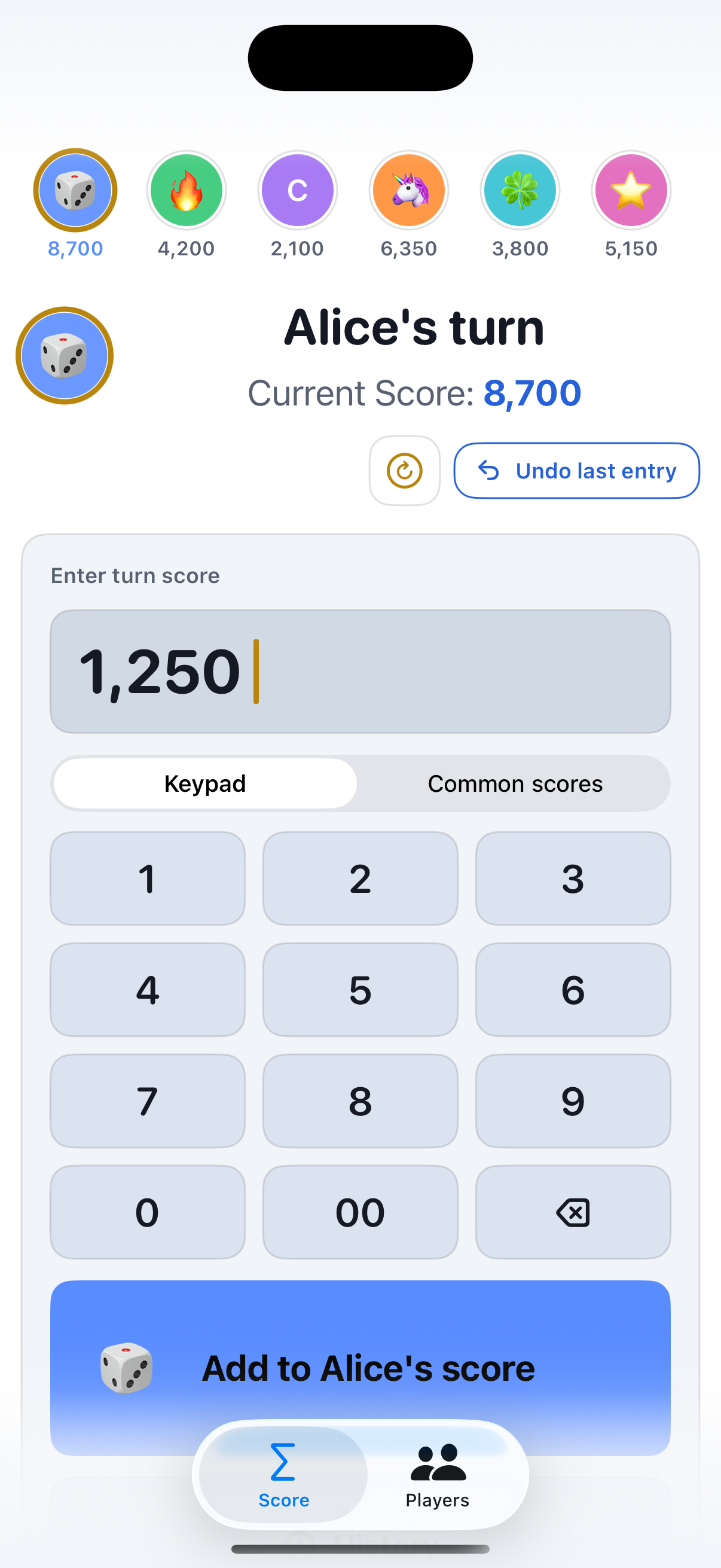
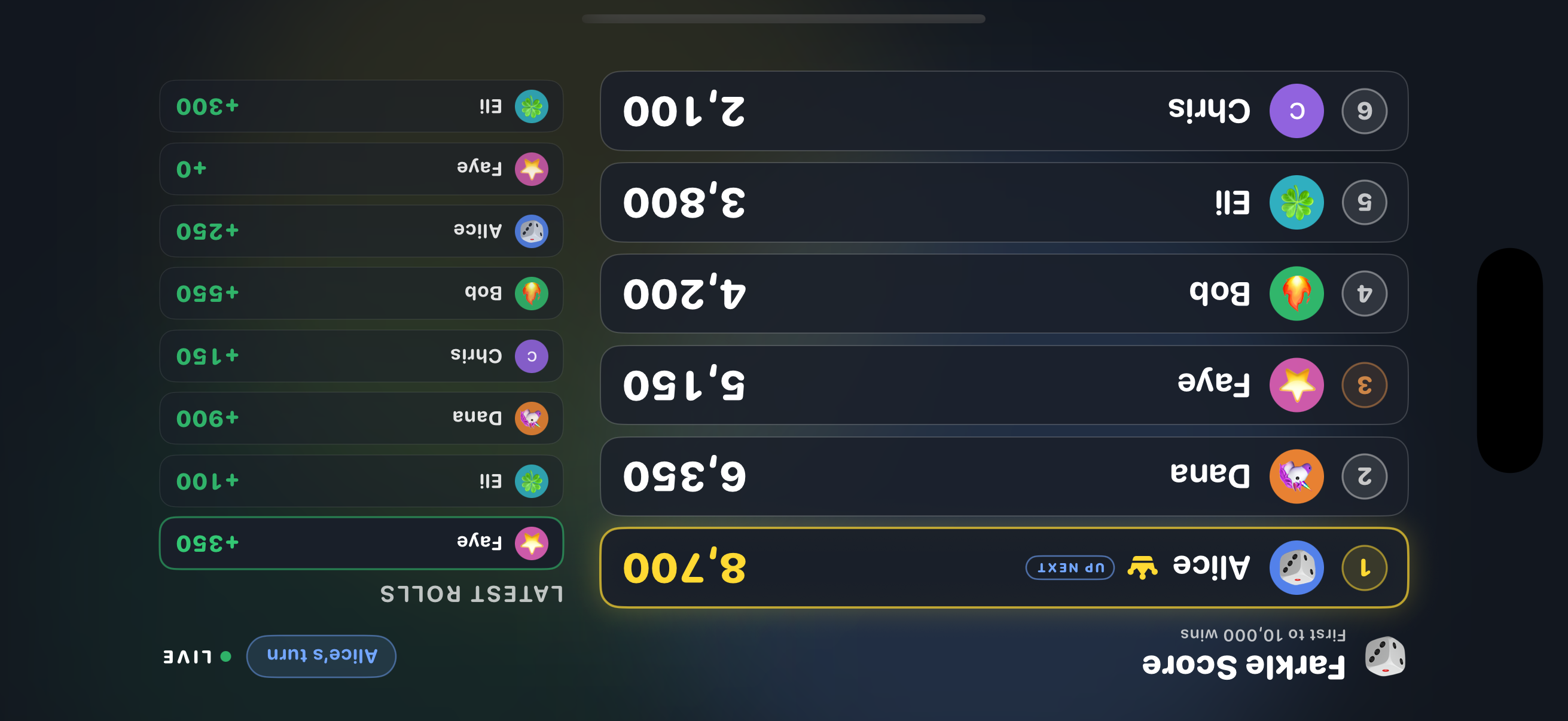
Since iOS 13, an external display is a scene. When someone starts AirPlay mirroring while your app is in the foreground, the system can hand your app a scene with the role windowExternalDisplayNonInteractive, and whatever window you attach to it replaces the mirror. If your app doesn't claim that role, iOS mirrors. No error, no log line, nothing to debug. It just mirrors, which is exactly what failure looks like, so you can't even tell how close you are.
Every tutorial I found shows one of two setups. Old ones use UIKit with storyboards declared in the Info.plist. Newer ones use a SwiftUI app with an app delegate adaptor and this method:
func application(
    _ application: UIApplication,
    configurationForConnecting connectingSceneSession: UISceneSession,
    options: UIScene.ConnectionOptions
) -> UISceneConfiguration {
    if connectingSceneSession.role == .windowExternalDisplayNonInteractive {
        let configuration = UISceneConfiguration(
            name: "External Scoreboard",
            sessionRole: connectingSceneSession.role
        )
        configuration.delegateClass = ExternalSceneDelegate.self
        return configuration
    }
    return UISceneConfiguration(name: nil, sessionRole: connectingSceneSession.role)
}
I had the correct method, but it wasn't enough: with the SwiftUI App lifecycle, iOS does not reliably call it for the external display role unless the scene configuration is also declared in your Info.plist scene manifest. The storyboard tutorials work because declaring the configuration in the plist is the storyboard workflow. The delegate class is doing the work, not the storyboard.
This goes in the Info.plist. No storyboard anywhere:
<key>UIApplicationSceneManifest</key>
<dict>
    <key>UIApplicationSupportsMultipleScenes</key>
    <true/>
    <key>UISceneConfigurations</key>
    <dict>
        <key>UIWindowSceneSessionRoleExternalDisplayNonInteractive</key>
        <array>
            <dict>
                <key>UISceneConfigurationName</key>
                <string>External Scoreboard</string>
                <key>UISceneDelegateClassName</key>
                <string>$(PRODUCT_MODULE_NAME).ExternalSceneDelegate</string>
            </dict>
        </array>
    </dict>
</dict>
Three details that will burn you:
UISceneDelegateClassName must be module-qualified. $(PRODUCT_MODULE_NAME) expands at build time. Check the built app with plutil -p YourApp.app/Info.plist, because a wrong class name fails the same silent way everything else does.The scene delegate itself is small. It hands the connected UIWindowScene to a controller that owns a UIWindow with a UIHostingController for the TV view. One habit worth keeping: set window.isHidden = false instead of makeKeyAndVisible(). The TV window should never steal key status from the phone.
final class ExternalSceneDelegate: NSObject, UIWindowSceneDelegate {
    func scene(
        _ scene: UIScene,
        willConnectTo session: UISceneSession,
        options connectionOptions: UIScene.ConnectionOptions
    ) {
        guard let windowScene = scene as? UIWindowScene else { return }
        ExternalDisplayController.shared.sceneDidConnect(windowScene)
    }
}
The Simulator removed external display support years ago, so I added a DEBUG launch argument that renders the TV view in the phone's own window. That is how I iterated on the scoreboard layout without standing in the living room. The screenshot above comes from that mode.
The real test is still hardware: run the app on a phone, open Control Center, mirror to an Apple TV, bring the app to the foreground. The moment the mirror snapped over to the scoreboard, after this many failed attempts across this many apps, I grinned at my own television.
If your TV still mirrors after all this, check the merged plist in the built product before touching code. Mine was right on the first try only because I had already been wrong so many times.